
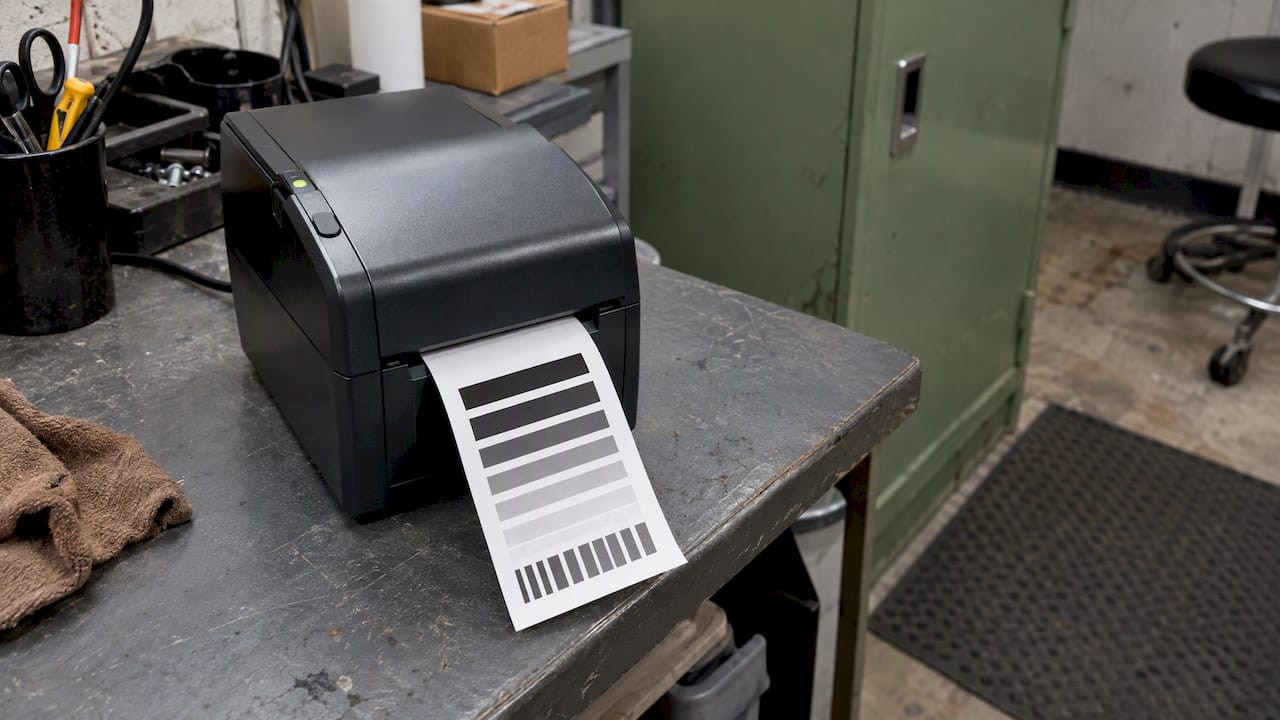
Thermal Print Darkness: Settings, Media and Storage

Thermal print darkness depends on three things working together: how much heat the printer delivers, how sensitive the paper is, and how the printed ticket is stored afterward. Turning the darkness setting up fixes some faded tickets. It makes others worse. This guide shows parking, valet and hospitality operators how to diagnose a light ticket, adjust the printer correctly, and keep the print dark for as long as the ticket has to be read.
TL;DR
- Darkness is a chemical reaction in the paper, so the printer setting is only one half of the result. Wrong paper grade will print light at any setting.
- To print darker, raise the darkness or intensity value in small steps, slow the print speed, and clean the printhead first.
- Use the lowest setting that gives a crisp, scannable result. Excess heat blurs barcodes and shortens printhead life.
- If tickets print dark but fade later, look at heat, sunlight, plastic sleeves and solvents, not at the printer.
- Match the paper’s durability to how long the ticket has to stay legible, from a few hours of valet service to a monthly pass.
Table of Contents
- What “darkness” actually means on a thermal printer
- Step 1: Confirm you are using the right media
- Step 2: Clean the printhead
- Step 3: Adjust darkness and speed in the right order
- A quick troubleshooting table
- Why a ticket prints dark and then fades
- Match the paper’s lifespan to the ticket’s job
- Consistency matters as much as darkness
- Our perspective
- Ticket options for operations that need dependable results
- A short checklist to keep darkness consistent
- FAQ
- Sources
What “darkness” actually means on a thermal printer
A direct thermal printer has no ink. Its printhead is a row of tiny heating elements. When those dots touch specially coated paper, the dyes in the coating react to the heat and develop an image. Darkness is simply how far that reaction goes at each dot.
Two variables control it on the printer side:
- Energy per dot. Set by the darkness, density or intensity value in the printer menu, driver or command language.
- Dwell time. Set by print speed. When the printer moves more slowly, the head spends longer on each dot, and the dot gets darker.
On the paper side, the coating has its own sensitivity. Technical documentation from a thermal paper manufacturer explains that print darkness is a function of both the paper’s sensitivity and the printer’s energy output. That is why two printers with identical settings can produce different results on different rolls.
A useful reference point: direct thermal paper typically starts to develop color between 60°C and 100°C (140°F to 212°F) and reaches optimal density between 70°C and 120°C (158°F to 248°F), according to the same handling guide. Your printhead is working inside that window. Your valet booth should stay well outside it.
Step 1: Confirm you are using the right media
Before touching any setting, check the paper. Using stock designed for low-speed, low-heat printers in a fast machine will produce pale images no matter how high the darkness is set. The manufacturer guidance on this is blunt: verify the media grade first.
Two quick checks:
- Is it direct thermal at all? Scratch the surface of a blank section with a fingernail. On direct thermal stock, a dark mark appears. Printer manufacturers publish a similar test, and Zebra’s troubleshooting page notes that the media may not be direct thermal media when output is light or missing.
- Is it the grade your printer was built for? High-speed kiosks and gate machines need paper with a fast thermal response. A roll that works at a slow desktop printer may look gray in a high-throughput entry lane.
If you are choosing between stock paper, thermal rolls and other formats, our guide to parking ticket paper and what really lasts walks through the trade-offs.
Step 2: Clean the printhead
Most operators reach for the menu first. Clean the head first instead.
Residue on the printhead acts as an insulator. It blocks heat transfer to the paper and causes faded text regardless of the darkness setting. Star Micronics makes the same point in its own guidance: cleaning the thermal print head may resolve faded or light printing without a change to print density.
A practical routine for a busy lot or hotel stand:
- Follow the cleaning method in your printer’s manual, which usually calls for isopropyl alcohol and a lint-free swab or cleaning pen.
- Let the head dry before loading paper.
- Look for vertical white streaks. A streak running down the whole ticket usually points to a dirty or damaged spot on the head, not a setting problem.
- Clean when you change rolls, and more often in dusty garages or locations where tickets are handled with oily hands.
If cleaning does not remove the streaks, the printhead may be worn, and that is a hardware repair, not a darkness adjustment.
Step 3: Adjust darkness and speed in the right order
Once the paper and printhead check out, change settings one at a time and print a test ticket after each change. Changing three things at once tells you nothing.

Raise the darkness value in small steps
The menu may call it print darkness, density, intensity, heat or contrast. Raise it by one or two steps, print, and compare. Many printers expose this on the control panel, through a driver, or by a command from the host software.
One trap: print density may also be controlled by your point-of-sale or ticketing software. Star Micronics warns that changes made in the driver or utility may be overridden by the POS. If your setting seems to do nothing, check the application sending the job.
Slow the print speed
Lower speed gives each dot more contact time, which transfers more thermal energy to the paper and gives a deeper black. This is the second lever, and it is often the better one when you are already near the top of the darkness scale. The trade-off is throughput. In a fast entry lane, a slower speed may be unacceptable, so test at the pace your operation actually runs.
Look for a secondary offset
Some industrial printers add a secondary modifier, often labeled an intensity shift or darkness offset, that extends the range beyond the standard numeric scale. On these machines, maxing the main value may not give the darkest result, and both the main intensity and the offset need calibrating. Check your model’s programming manual before experimenting.
Stop when it looks right, not when it is maximum
More heat is not better. Zebra’s guidance for its printers is to set the darkness to the lowest setting that gives good print quality because too high a value can make images print unclearly and affect barcodes. Excess heat can also damage the printhead and shorten its life, which makes the saving on an extra setting step a false economy.
A quick troubleshooting table
| What you see | Likely cause | What to do |
|---|---|---|
| Whole ticket is pale from the first print | Wrong paper grade, or darkness too low | Confirm direct thermal media and grade, then raise darkness one step |
| Pale print with white vertical streaks | Dirty or worn printhead | Clean the head; replace it if streaks remain |
| Dark at first, light a few hours later | Heat, sunlight or chemical exposure | Fix storage and handling, consider a more durable coating |
| Background looks gray or tinted before printing | Paper has been heat-exposed (fogging) | Replace the roll and move storage away from heat |
| Barcodes blurred and failing to scan | Darkness set too high | Lower darkness by a step, then retest with your scanner |
| Settings change nothing | Software overriding printer settings | Check the POS or ticketing application |
Why a ticket prints dark and then fades
Operators often blame the printer for a problem that began after the ticket left it. Fading is commonly caused by storage and handling conditions rather than printer failure. The documented culprits are:
- Direct sunlight and UV exposure, including a ticket left on a dashboard.
- Heat above 40°C (104°F). Extended exposure of more than 24 hours can cause premature image development and loss of contrast.
- Plasticizers, such as those in soft PVC sleeves and wallets.
- Solvents, including cleaners and adhesives.
- Heavy mechanical friction.
That list reads like a description of a car in summer. A ticket tucked into a visor, a cup holder or a vinyl sleeve is exposed to nearly every factor at once.
The valet booth problem
The risk applies before printing too. When paper sits in a hot booth or beside a heat-producing kiosk, it can undergo pre-imaging, also called fogging, where the background darkens. Contrast drops, and the printed text looks light even when the printer is working correctly. The handling guide recommends storing paper at 18°C to 25°C (64°F to 77°F) with relative humidity of 40 to 60 percent. For long-term storage, keep it cool, dry and dark, with humidity under 60 percent.

A second manufacturer’s guidance agrees on the principle: store thermal paper in the dark below 25°C with humidity under 65 percent for long-term storage. Treat the stricter figures as your target.
Practical habits that help:
- Keep spare rolls in a closed cabinet inside the building, not in the booth or a vehicle.
- Rotate stock so the oldest rolls are used first.
- Leave rolls in their wrapping until needed.
- Keep tickets away from windows and from heat vents.
- Humidity matters too. Our note on ticket paper and moisture covers how to protect stock in damp garages.
For a fuller walk-through, see our checklist to stop thermal ticket fading.
Match the paper’s lifespan to the ticket’s job
Print darkness is a temporary state in a sensitive chemical process. Thermal paper is designed for specific lifespans under controlled conditions, and properly stored tickets should stay legible for at least two to five years. Your tickets are not stored under controlled conditions. They ride in pockets and cars.
That is why the question to ask is how long the ticket has to work:
| Ticket use | Needed legibility | Approach |
|---|---|---|
| Hourly garage entry ticket | Hours to a day | Standard thermal stock is usually enough |
| Valet claim check | A few hours, often in a hot car or pocket | Consider paper-based multi-part tickets that do not rely on heat |
| Event parking pass or multi-day hotel stay | Days | A top-coated thermal grade or a non-thermal format |
| Monthly pass, receipt or validation | Weeks or longer | Top-coated thermal or conventional printed stock |
The manufacturer advice is to prioritize durability that fits the expected lifespan, for example by choosing top-coated thermal paper, so tickets do not fade in a customer’s pocket or vehicle. We go deeper on the trade-offs in thermal reactive ink tickets and garage parking ticket durability.
Consistency matters as much as darkness
For parking operations, a ticket that is dark on average is not enough. A barcode has to scan every time, in every lane, at every hour.
High-performance printers address this with software such as dynamic print control, which monitors printhead temperature in real time and predicts the energy each dot needs. The goal is consistent darkness across vertical lines and barcodes. If your printer lacks this, you can still improve consistency:
- Let the printer warm up before a rush period rather than printing the first tickets cold.
- Avoid printing dense black blocks next to fine barcode bars.
- Test with the actual scanner used in your lanes, not a phone camera.
- Print a sample after every roll change and every setting change, and keep the best one as a reference.
When you are planning a barcode layout, parking barcode formats are worth settling before a large print run.
Our perspective
We have printed tickets for parking, valet, hotel and casino operations since 1937, and the same pattern comes up again and again. An operator calls about a printer that has gone light. The cause is rarely the machine. It is usually a roll that has sat too close to heat, a printhead that has not been cleaned in months, or a thermal ticket asked to do a job that a durable paper ticket handles better.
Our view is simple. Choose the format for the job first, then tune the printer. A valet claim check has to survive a pocket, a dashboard and a rainy evening. For that reason, many valet operators we work with rely on multi-part carbonless paper tickets, which do not depend on heat for their image at all. Thermal is excellent for fast machine-issued entry tickets and receipts, where speed and scan reliability matter and the ticket has a short life.
We also encourage operators to test before they commit. Order a small quantity, run it through your actual printers and lanes, leave a few tickets in a parked car for a day, and see what comes back. That costs little and tells you more than any specification.
— Richard
Ticket options for operations that need dependable results
If your tickets are fading faster than your operation can tolerate, the format may be the fix. We manufacture and stock parking, valet and event tickets in several formats, and many are compatible with major parking systems including Amano, TIBA, SKIDATA, FLASH Parking, Scheidt & Bachmann and Flowbird.
- For valet, our 2-part, 3-part and 4-part valet tickets are paper-based, with sequential numbering and custom branding available.
- For scan-based control, see our barcoded valet tickets.
- For gate and kiosk equipment, we carry machine-issued valet tickets and dispenser and spitter tickets.
If you are unsure which format fits your equipment, our practical guide to printed parking tickets and the roundup of parking ticket material options are a good place to start.
A short checklist to keep darkness consistent
- Confirm the paper is the correct direct thermal grade for your printer and speed.
- Clean the printhead on every roll change.
- Check that no software layer overrides the printer’s darkness setting.
- Raise darkness one step at a time, then slow the speed if you need more.
- Stop at the lowest setting that scans reliably.
- Store rolls cool, dry and dark, and never in a booth or vehicle.
- Pick a paper grade that matches how long the ticket has to be read.
- Re-test whenever you change paper lots, printers or firmware.
FAQ
How do I make my thermal printer print darker?
Clean the printhead, confirm you are using the right thermal paper, then raise the darkness or intensity setting by one step at a time. If it is still light, lower the print speed so each dot receives more heat. Check that your POS software is not overriding the printer’s setting.
Why does thermal print fade after a few hours or days?
Fading is usually caused by heat, sunlight, UV, plasticizers in soft vinyl sleeves, solvents or friction, according to thermal paper handling guidance. A ticket left in a hot car is a common case. A top-coated thermal grade or a paper-based ticket resists these conditions better.
At what temperature does thermal paper turn black?
Direct thermal paper typically begins to develop color between 60°C and 100°C (140°F to 212°F), per manufacturer documentation. Prolonged exposure at 40°C (104°F) or above can already cause premature image development and lower contrast, so keep paper well below that.
Is a higher darkness setting always better?
No. Too much heat can blur the image, make barcodes harder to scan and wear out the printhead sooner. Use the lowest setting that gives a clean, readable, scannable ticket.
How long should a thermal ticket stay readable?
Under proper storage, industry guidance puts it at at least two to five years. In real parking use, tickets face heat and handling, so choose the paper grade for the ticket’s actual working life rather than the best-case figure.
Sources
- TSC T8000 thermal printer documentation
- EnDURO Thermal handling and storage guide
- Star Micronics: How to adjust print density on a thermal printer
- Zebra GK420 user guide: print quality problems
- Thermal paper storage conditions (Mettler Toledo)